


In the modern era of “Cloud-First” computing, suspects often believe that keeping files in the cloud protects them from local forensic analysis. They assume that if a file is “Online Only,” it leaves no trace on the physical workstation. This is a critical tactical error.
To provide a seamless user experience, cloud synchronization clients (OneDrive, Dropbox, Google Drive, Box) must maintain a massive amount of metadata and “ghost” files on the local disk. Even if the actual data content remains in the cloud, the footprints of its existence are permanently etched into the OS.
1. The “Cloud Shadow”: Virtual Files and NTFS Attributes
Modern cloud clients use a feature called “Files on Demand.” This allows a file to appear in Windows Explorer with a size and extension, but the actual bits are not downloaded until the user double-clicks it.
The Forensic Intel: Even for “Online Only” files, the Master File Table (MFT) still creates a record for that file.
- Attribute $REPARSE_POINT: This is the smoking gun. It tells the NTFS driver that this isn’t a normal file, but a link to a cloud provider.
- Timestamps: The MFT records when the “placeholder” was created, which often correlates to when the suspect first synced their malicious cloud account to the company machine.
2. OneDrive: The Sync Engine Database
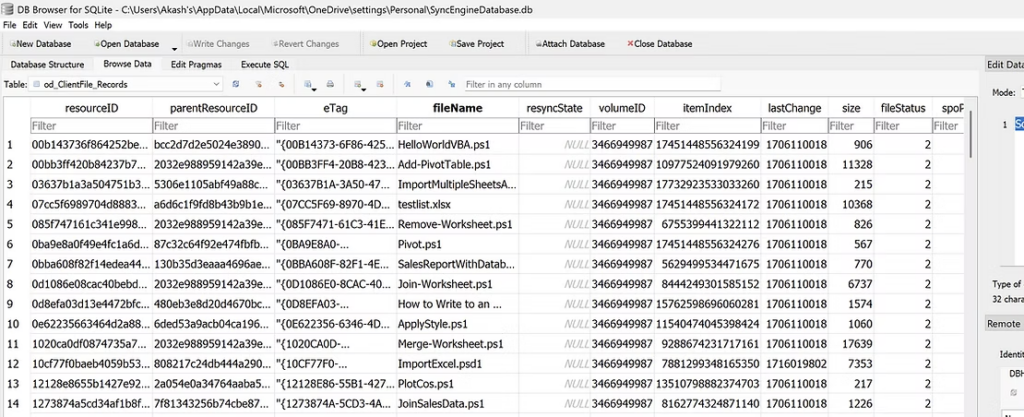
OneDrive is deeply integrated into the Windows kernel. It doesn’t just sync files; it maintains a complex relational database to track every change.
- The Database:
SyncEngineDatabase.dborUserCid.dat - Location:
%LocalAppData%\Microsoft\OneDrive\settings\ - The Intelligence: This database contains a historical log of every file that has ever been in that OneDrive folder, even if it was deleted months ago. It records:
- Original Path: Where the file lived in the cloud hierarchy.
- Remote ID: A unique identifier that can be used via legal process (subpoena) to request the specific file from Microsoft.
- Status: Whether the file was “Resident” (on disk) or “Cloud” at the time of the last sync.
3. Dropbox: The config.db and filecache.db
Dropbox is notoriously difficult for suspects to clean. It leaves extensive artifacts in the user’s AppData.
- filecache.db: This SQLite database is a goldmine. It stores a list of all synced files and their local paths.
- config.db: Contains the email address associated with the Dropbox account and the “Host ID.”
- Investigative Tip: If you find a “Host ID” in the Registry but the Dropbox folder is empty, it proves the suspect uninstalled the software to hide evidence of exfiltration.
4. Thumbnails and Office Cache: The Content Leak
This is the most common way to recover “Cloud-Only” data content without a cloud password.
- Thumbnail Cache: When a user browses their OneDrive folder, Windows generates a thumbnail for every image and PDF, even if they are “Online Only.” These thumbnails are stored in
thumbcache_*.db.- The Result: We can see what was in the cloud images by looking at the local thumbnail cache.
- Office Document Cache: If a suspect opens a Word document directly from the cloud, Microsoft Office saves a temporary copy in the Office Document Cache (ODC).
- Location:
%LocalAppData%\Microsoft\Office\16.0\OfficeFileCache\ - The Result: We can often reconstruct the entire text of a “Cloud” document from these local cache fragments.
- Location:
5. Tactical Workflow: Interrogating Cloud Artifacts
- Identify the Client: Search the Registry for installed sync clients and the root folder paths (e.g.,
C:\Users\Suspect\OneDrive - Ocsaly Academy). - Check LNK Files: Use LECmd to find shortcuts pointing to the cloud folder. If an LNK file exists for a document in the OneDrive folder, the user interacted with it.
- Parse the DBs: Use DB Browser for SQLite to open the OneDrive or Dropbox sync databases. Search for filenames related to the investigation.
- Examine Browser History: Cross-reference cloud activity with Browser History (p4.1). Often, the suspect will log into the web version of the cloud to delete files, leaving a trace in the
HistorySQLite file.