


In this final lecture of Section 1, we go deeper than the “Ghost City” analogy. We are performing a low-level hardware interrogation. To an Operating System, a file is a solid object; but to a Forensic Analyst, data is a liquid poured into “containers” of a specific size.
Understanding how these containers overflow is how we find the “residue” of evidence the suspect thought was long gone.
1. The Physical Layer: The Sector (512b / 4Kn)
The Sector is the smallest physical storage unit on a drive platter.
- Legacy: 512 bytes.
- Modern (Advanced Format): 4096 bytes (4KB).
- Think of a Sector as a single brick in a wall.
2. The Logical Layer: The Cluster (Allocation Unit)
Operating Systems (Windows, Linux) don’t want to track billions of individual sectors; it’s too much work for the CPU. Instead, they group sectors into Clusters.
- A typical Windows NTFS cluster is 4KB (8 sectors).
- Think of a Cluster as a room in a building. Even if only one person is in the room, the room is marked as “Occupied”.
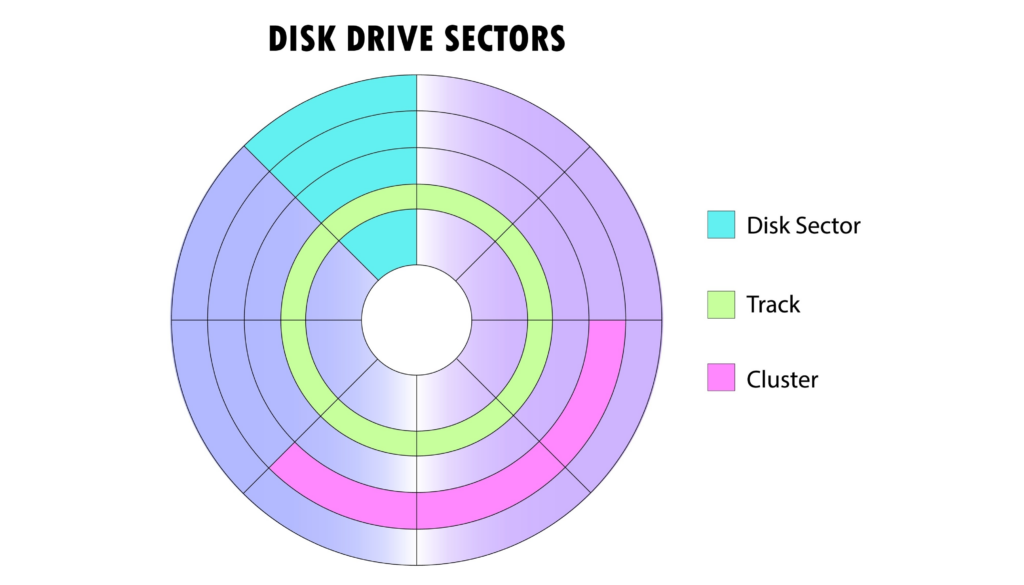
The image provided shows the “concentric” nature of data storage.
- Track (Green): A ring on the platter.
- Sector (Cyan): The smallest slice of that ring.
- Cluster (Pink): A logical group of sectors that the OS treats as one single unit.
As an analyst, when we perform “Bad Sector” recovery, we are literally telling the read-head of the drive to try and re-parse one of those tiny cyan blocks.
Interactive Lab: [root@ocsaly ~]# drive_map –visualize –platter-0
MISSION: You need to identify a “hidden sector” within a track. Use the interactive radar below to scan the physical platter and identify where the data is residing.
3. The “Slack Space” Secret (The Forensic Goldmine)
Files almost never fit perfectly into a cluster. This creates a “gap” where history hides.
- The Scenario: You save a text file that is only 1KB.
- The Geometry: The OS gives that file a 4KB Cluster.
- The Result: The first 1KB is your file. The remaining 3KB is Slack Space.
- The Magic: The OS cannot use that leftover 3KB for anything else because the cluster is “full.” However, that 3KB still contains whatever was there before—deleted emails, browser history, or fragments of a hidden key.
This illustration is a classic visualization of Data Persistence and Slack Space, which are fundamental concepts in digital forensics and computer science.
It explains why “deleting” a file doesn’t actually remove it from a hard drive and how old data can hide behind new files. Here is a breakdown you can use for your blog:
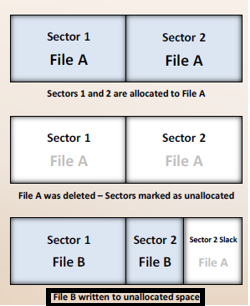
Phase 1: File Allocation
In the first image, File A is created. The operating system (OS) looks for empty spots on the hard drive and allocates Sector 1 and Sector 2 to store it. At this stage, the data is “live” and active.
Phase 2: The “Deletion” Myth
When you delete File A, the OS doesn’t actually go in and “scrub” the sectors with zeros (which would be slow and wear out the drive).
- Instead, it simply marks those sectors as Unallocated (available for reuse) in the file system index.
- As shown by the faded text, the original data of File A is still physically there. This is why data recovery software can often “undelete” files.
Phase 3: Overwriting and Slack Space
This is the most critical part of the diagram. A new file, File B, is written to that “unallocated” space.
- File B is smaller than File A. It completely fills Sector 1, but it only needs a portion of Sector 2.
- Sector 2 Slack: Because the OS writes data in fixed-size blocks (sectors), the remaining space in Sector 2 is left untouched.
- The Forensic “Goldmine”: The end of Sector 2 still contains the original “ghost” data from File A. This is called Slack Space.
Key Takeaways :
- Deletion is just an “Available” sign: Deleting a file just tells the computer, “You can park new data here whenever you’re ready.”
- Files rarely match sector sizes: Data is almost never the exact size of the storage sectors. This creates “slack” where fragments of old, deleted files can survive for a long time.
- Privacy Implications: Even if you save a new file over an old one, fragments of the old file (like passwords, chat logs, or image metadata) might still exist in the slack space of the new file.
Here is an explanation of the practical Slack Space Interrogation lab we have developed, using the specific data from your forensic workstation simulation.
The Practical Objective: Beyond the OS View
In this lab, we are investigating Cluster 24. While a standard user looking at this through Windows or macOS would only see a small file called pass.txt, we are looking for the “residue” left behind by previous data.
1. Decoding the Hex Interface
Looking at the Interrogation Station dashboard, we see the raw data as the computer sees it:
- Logical Data (Offset 0x0000): The first line shows
70 61 73 73 3D 31 32 33. In the ASCII column, this translates topass=123. This is the “Live” data the user currently knows about. - The Null Padding: Following the password, you see several
00bytes. This indicates the End of File (EOF). - The Slack Area (Offset 0x0010): This second row is currently shown as empty (
00values) in the “Logical” view. This is because the Operating System tells the computer to stop reading once it hits the EOF marker.
2. The Metadata Breakdown
The Metadata Analysis panel reveals why this cluster is a “Goldmine” for an investigator:
- Cluster Size (4096 bytes): This is the total “room” the OS allocated for the file.
- Logical Size (8 bytes): The actual password string
pass=123only takes up 8 tiny bytes of space. - Slack Space (4088 bytes): Because the file is so small, there are 4,088 bytes of unused space sitting in this cluster.
3. Performing the “Physical Slack Carve”
When you switch the Acquisition Mode from “Logical” to “Physical (Slack Carve)”:
- The tool ignores the
pass=123EOF marker. - It continues reading every single bit until it reaches the physical boundary of the 4096-byte cluster.
- The Result: In a real-world scenario (and our interactive code), this would reveal hidden fragments—perhaps a deleted encryption key or a chat message—that were part of a previous file that occupied this cluster before it was “deleted”.
Student Takeaway
The most important lesson here is that File B (pass=123) does not perfectly replace File A (The Secret). Because the new file is smaller than the storage container (the cluster), a “ghost” of the original evidence survives in those 4,088 bytes of slack space.