


In the previous lectures, we captured the memory and hunted down the hidden processes. But a modern malware infection is rarely an isolated event. Most malware acts as a Beacon—it is designed to “Phone Home” to a Command & Control (C2) server to receive instructions, upload stolen data, or download further payloads.
When you have a memory dump, you have a frozen map of every “conversation” the computer was having with the outside world at the moment of the snapshot. In Network Forensics via Memory, we aren’t just looking at traffic; we are looking at the sockets and the resolver cache.
1. The Digital Paper Trail: Network Sockets
A “Socket” is the combination of an IP Address and a Port Number. In the Windows Kernel, these are managed by the tcpip.sys driver.
When an analyst looks at network artifacts in RAM, they are looking for three specific states:
- LISTENING: The computer is waiting for someone to connect to it. (Example: A hidden backdoor waiting for the attacker).
- ESTABLISHED: An active, live conversation. (Example: Malware currently exfiltrating your
Documentsfolder to a server in a foreign country). - CLOSE_WAIT/TIME_WAIT: The “echo” of a recently closed connection. Even if the attacker disconnected seconds before you took the memory dump, the “ghost” of that connection remains in the kernel structures for a short period.
2. Interrogating the DNS Cache (The Memory of Names)
Before a computer connects to malicious-site.com, it must ask a DNS server for the IP address. Windows stores these answers in the DNS Client Cache to speed up future requests.
- The Forensic Value: Even if the malware is not currently connected, the DNS cache will prove that the computer tried to talk to a specific domain.
- TTL (Time to Live): Every entry in the DNS cache has a countdown timer. If you capture the RAM quickly, you can see exactly which malicious domains were resolved in the last few minutes of the system’s life.
3. Tactical Command: windows.netstat
In Volatility 3, the primary tool for this interrogation is the netstat plugin. Unlike the live netstat command (which malware can lie to), the Volatility version scans memory for TCP_ENDPOINT and UDP_ENDPOINT structures.
Execution:
python3 vol.py -f dump.mem windows.netstatOUTPUT :
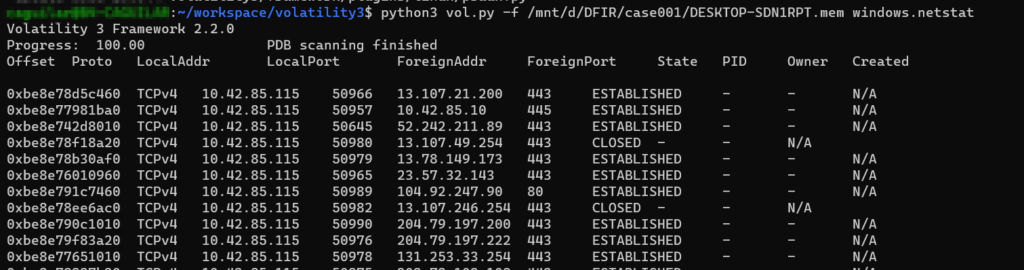
What to look for in the output:
- Foreign Addresses: Look for IP addresses that don’t belong to your organization. Use “Whois” or “Threat Intelligence” (like VirusTotal) to see if that IP is a known C2 server.
- Suspicious Ports:
- Port 80/443: Standard web traffic (Malware often hides here to look like a browser).
- Port 4444/5555: Classic default ports for tools like Metasploit.
- Non-Standard Ports: High-numbered ports (e.g., 59281) used for custom encrypted tunnels.
- Owner PID: The most critical column.
netstattells you which Process ID owns the connection. If you see an ESTABLISHED connection to an unknown IP, and the owner issvchost.exe, you must check if thatsvchost.exeis a legitimate system process or a hollowed-out imposter.
. Advanced Correlation: Sockets to Processes
The true power of Network Forensics in RAM is Correlation.
Imagine you find an ESTABLISHED connection to a suspicious IP on Port 80.
- You identify the PID (e.g., 4082).
- You go back to
windows.psscanand see that PID 4082 isexplorer.exe. - The Analysis: Why is
explorer.exe(the file browser) talking to a Russian IP address on Port 80?explorer.exeshould only be managing your desktop. This is a clear indicator of Code Injection (where the malware is living inside the explorer process).
5. Interactive Lab: [OPERATOR@OCSALY]# vol.py windows.netstat –find-c2
SITUATION: You have the RAM dump from a workstation suspected of a data breach. You need to identify the attacker’s Command & Control IP and determine which process is leaking the data.
YOUR MISSION: Analyze the network table below. Identify the Anomaly.
| Proto | Local Addr | Foreign Addr | State | PID | Owner |
| TCP | 192.168.1.10:443 | 52.12.4.1:443 | ESTABLISHED | 1204 | chrome.exe |
| TCP | 192.168.1.10:135 | 0.0.0.0:0 | LISTENING | 800 | rpcss.exe |
| TCP | 192.168.1.10:5902 | 91.24.1.88:443 | ESTABLISHED | 3044 | lsass.exe |
| TCP | 127.0.0.1:49152 | 0.0.0.0:0 | LISTENING | 544 | wininit.exe |
| LOCAL_IP | FOREIGN_IP | PORT | STATE | PID |
|---|
6. Why the Attacker uses lsass.exe
In the lab above, the anomaly is the connection from lsass.exe to 91.24.1.88. lsass.exe (Local Security Authority Subsystem Service) is a critical Windows process responsible for enforcing security policies and handling user logins. It should never initiate a connection to a random IP on the internet.
When you see this, you know the attacker has performed Process Injection or DLL Injection. They are using a trusted system process as a “cloak” to bypass your firewall. Because most firewalls trust lsass.exe to do its job, the malicious traffic is allowed to “Phone Home” without being blocked.