On this page
SDR++ (SDRPlusPlus) is a free, open-source receiver program for software defined radio. It runs on Windows, Linux and macOS, starts quickly, and supports most popular radios: RTL-SDR, HackRF, Airspy, SDRplay, LimeSDR, PlutoSDR and network sources such as rtl_tcp and SpyServer. It shows a spectrum and waterfall, demodulates FM, AM and SSB, and has plugins for recording, a frequency list and remote control.
This tutorial takes you from installation to your first signals, with the settings that matter most.
Install SDR++
| System | How to install |
|---|---|
| Windows | Download the Windows build from the official SDR++ releases or nightly builds, unzip, run sdrpp.exe |
| Linux (Debian, Ubuntu) | Install the .deb package from the releases page, or build from source |
| macOS | Download the macOS app bundle from the releases page |
For an RTL-SDR on Windows, install the WinUSB driver with Zadig first (select “Bulk-In, Interface 0”). On Linux, blacklist the DVB-T kernel driver (dvb_usb_rtl28xxu) so SDR++ can claim the dongle.
The screen in one minute
- Left panel: source settings, radio (demodulator), recorder and other modules
- Top: frequency display, play button, volume
- Centre: spectrum (FFT) on top, waterfall below. Brighter colour means a stronger signal
- Red band in the spectrum: the part of the signal being demodulated (the VFO)
Click in the waterfall to tune. Drag the red band to move it. Scroll on the frequency digits to change them.
Step 1: choose the source and sample rate
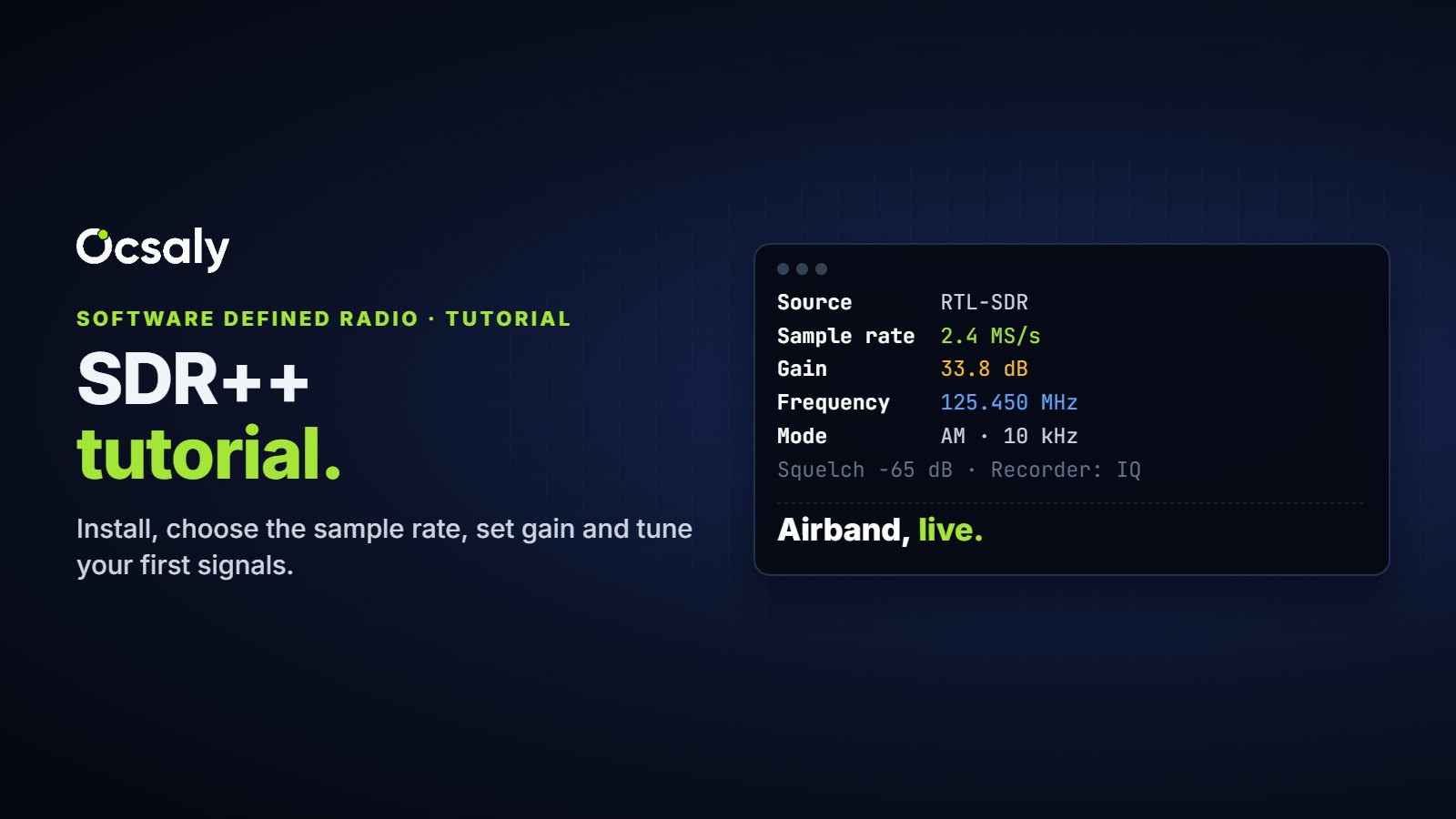
In the Source menu, pick your radio and set the sample rate. The sample rate is how much spectrum you see at once.
| Radio | Good starting sample rate | Notes |
|---|---|---|
| RTL-SDR (V3, V4) | 2.4 MS/s | Up to about 2.56 MS/s is stable on most dongles |
| Airspy Mini / R2 | 3 or 6 MS/s, 10 MS/s on R2 | Higher rates need more CPU |
| HackRF One | 8 to 10 MS/s | Up to 20 MS/s, 8-bit samples |
| SDRplay | 2 to 8 MHz | Uses the SDRplay API |
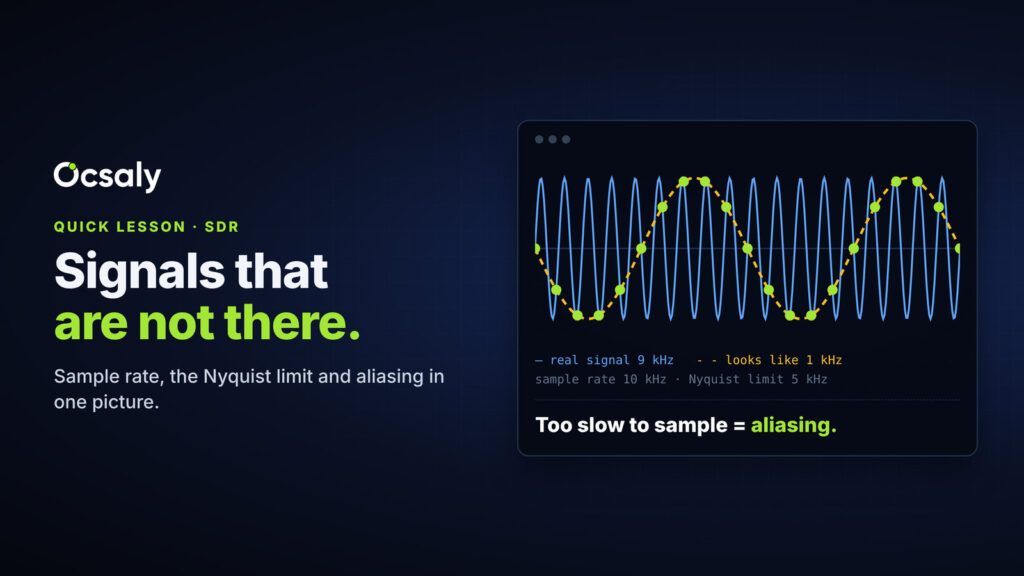
A wider view uses more CPU. Start low, increase when you need it. Why the sample rate equals the bandwidth you see is explained in our guide to SDR sample rate and Nyquist.
Step 2: set the gain
Gain is the most important setting. Too low and weak signals vanish; too high and the receiver overloads, so you see fake signals and a raised noise floor everywhere.
- Start with automatic gain off and a middle value.
- Raise the gain until the noise floor in the spectrum lifts slightly.
- If you see copies of strong stations appearing at wrong frequencies, back off.
On an RTL-SDR, the bias-T option powers an active antenna or LNA through the coax. Only switch it on if your antenna needs power.
Step 3: tune your first signals
| Signal | Frequency (varies by country) | Mode | Bandwidth |
|---|---|---|---|
| FM broadcast | 87.5 to 108 MHz | WFM | 150 to 200 kHz |
| Airband (aircraft voice) | 118 to 137 MHz | AM | 8 to 10 kHz |
| Amateur 2 m | 144 to 148 MHz | NFM | 12.5 kHz |
| Marine VHF | 156 to 162 MHz | NFM | 12.5 kHz |
| PMR446 | 446 MHz | NFM | 12.5 kHz |
| Shortwave amateur | HF bands | USB / LSB | 2.4 to 3 kHz |
Start with FM broadcast: tune to a strong station, select WFM, and you should hear audio immediately. If you hear noise, check the gain and that the play button is on.
HF (shortwave) needs a radio that covers it, such as the RTL-SDR Blog V4 with its built-in upconverter, an SDRplay or an Airspy HF+, and a long wire or loop antenna.
Step 4: useful modules
- Recorder: record audio or raw IQ (baseband). IQ recordings can be replayed and analysed later in SDR++, GNU Radio or Inspectrum.
- Frequency Manager: save bookmarks with names and modes, and show them on the waterfall.
- Squelch: silence the audio until a signal appears, useful for NFM channels.
- Rigctl server: lets other programs control SDR++ for tuning and scanning.
- Network sink: send audio to another program such as a decoder.
Common problems
| Problem | Fix |
|---|---|
| Source list is empty | Driver missing (Zadig on Windows) or DVB driver still loaded on Linux |
| A spike in the centre | DC offset of the radio; tune slightly off centre or enable DC block |
| Same station in many places | Gain too high, overload |
| Choppy audio | Sample rate too high for the CPU, or USB problems |
Frequently asked questions
Is SDR++ free?
Yes. SDR++ is free and open source and runs on Windows, Linux and macOS.
Is SDR++ better than SDR# or GQRX?
They do similar jobs. SDR++ is cross-platform, fast and supports many radios in one program. SDR# is Windows-only and popular with Airspy users. GQRX is a simple Linux and macOS option built on GNU Radio.
What is the best sample rate for RTL-SDR in SDR++?
2.4 MS/s is a reliable choice. It shows about 2.4 MHz of spectrum and works on almost every dongle and computer.
Why can I not hear anything in SDR++?
Check that the play button is pressed, the correct source is selected, the mode matches the signal (WFM for FM broadcast) and the gain is not at zero.
Can SDR++ transmit?
No. SDR++ is a receiver. Transmitting with a HackRF or similar needs other software and, in most countries, a licence for the frequency you use.
From listening to understanding
SDR++ lets you see and hear signals. Our Software-Defined Radio and Signal Processing course explains what is happening inside: sampling, IQ data, filters and demodulation, and how to build your own receivers in GNU Radio.