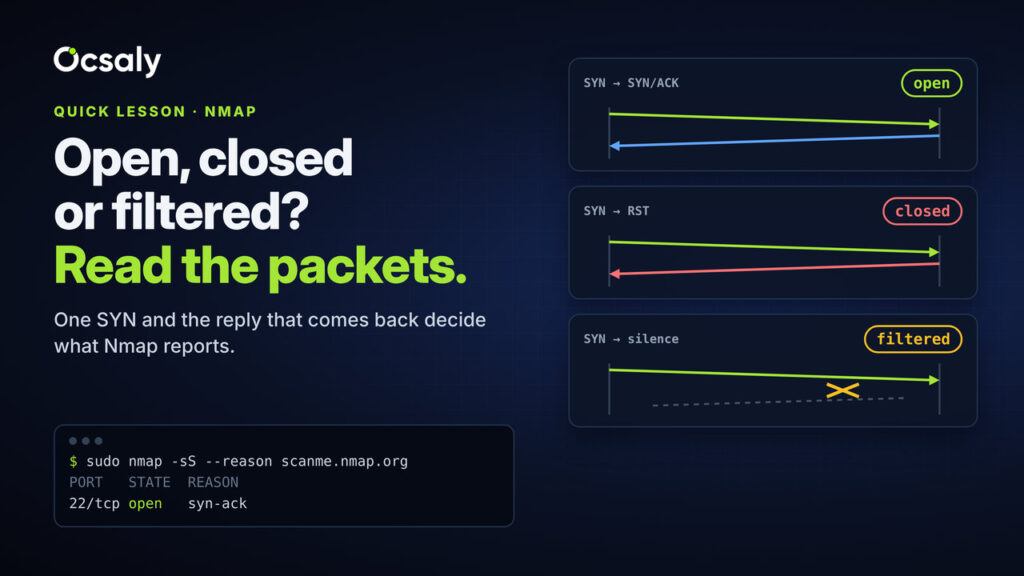
Nmap (Network Mapper) is the free, open-source tool that network administrators and penetration testers use to find which hosts are online, which ports are open and which services and versions run behind them. The command you will run most is nmap -sV target: it scans the 1000 most common TCP ports and identifies each service it finds.
This page is a working Nmap cheat sheet. Start with the interactive lab to see what really happens on the wire during a scan, then use the tables below as a reference. Only scan systems you own or have written permission to test. The Nmap project runs scanme.nmap.org so you can practise legally.
Interactive Nmap lab
In Lab 1, switch between scan types and target situations and watch the packets that decide whether Nmap says open, closed or filtered. In Lab 2, build a real command and read what every flag does before you run it.
scanme.nmap.org is run by the Nmap project for exactly this kind of practice. Keep it to a few scans a day.nmap
Nmap cheat sheet: the commands you will actually use
| Command | What it does |
|---|---|
nmap 192.168.1.10 | Scan the 1000 most common TCP ports on one host |
nmap 192.168.1.0/24 | Scan a whole subnet (256 addresses) |
nmap -sn 192.168.1.0/24 | Only find live hosts, no port scan |
nmap -Pn target | Skip host discovery and scan even if the host ignores ping |
nmap -p 22,80,443 target | Scan only the ports you list |
nmap -p- target | Scan all 65535 TCP ports |
nmap -F target | Fast scan of the 100 most common ports |
nmap -sV target | Detect the service and version on each open port |
nmap -O target | Guess the operating system (needs root) |
nmap -sC target | Run the default set of safe NSE scripts |
nmap -A target | Aggressive: OS detection, versions, default scripts and traceroute |
nmap -sU --top-ports 50 target | Scan the 50 most common UDP ports (needs root) |
nmap -T4 target | Faster timing on a reliable network |
nmap --reason --open target | Show why each port got its state, and only list open ports |
nmap -oA recon target | Save results as recon.nmap, recon.xml and recon.gnmap |
nmap --script-help default | Read what the default scripts do before you run them |
Nmap scan types: SYN vs connect vs UDP
The scan type decides which packets Nmap sends. You can see each one in Lab 1 above.
| Scan | How it works | Root needed | Use it when |
|---|---|---|---|
-sS SYN | Sends SYN, reads the reply, then resets without finishing the handshake | Yes | Default choice: fast and reliable |
-sT Connect | Completes the full TCP handshake through the operating system | No | You cannot run Nmap as root |
-sU UDP | Sends UDP probes and waits for replies or ICMP errors | Yes | Looking for DNS, SNMP, DHCP, VPN services |
-sA ACK | Sends ACK packets to see which ports a firewall lets through | Yes | Mapping firewall rules, not finding open ports |
If you run Nmap with root rights, it uses a SYN scan by default. Without root, it falls back to a connect scan. UDP scanning is slow because closed UDP ports answer with ICMP messages that most systems rate-limit, so start with --top-ports instead of all 65535 ports.
The six Nmap port states
| State | What it means |
|---|---|
| open | A program is accepting connections on this port |
| closed | The host answered, but nothing is listening on the port |
| filtered | A firewall or filter blocks the probe, so Nmap cannot tell if the port is open |
| unfiltered | The port is reachable, but Nmap cannot tell if it is open or closed (seen with -sA) |
| open|filtered | No reply at all, typical for UDP: open but silent, or filtered |
| closed|filtered | Nmap cannot tell closed from filtered (only with the rarely used idle scan) |
Add --reason to any scan and Nmap prints the evidence behind each state, such as syn-ack, reset or no-response. It is the fastest way to understand a confusing result.
Host discovery: is the target even up?
Before scanning ports, Nmap checks which targets are alive. With root rights it sends an ICMP echo request, a TCP SYN to port 443, a TCP ACK to port 80 and an ICMP timestamp request. On your local network it uses ARP instead, which is faster and more reliable. Without root it tries TCP connections to ports 80 and 443.
-snruns only this discovery step. It is the quickest way to list the live devices on a network.-Pnskips discovery and treats every target as online. Use it when a host blocks ping, otherwise Nmap may report it as down and never scan it.-PS22,80,443or-PEchoose your own discovery probes when the defaults are blocked.
Nmap timing templates T0 to T5
| Template | Name | When to use it |
|---|---|---|
-T0 | Paranoid | Extremely slow, one probe at a time with long pauses |
-T1 | Sneaky | Very slow, to stay under simple detection thresholds |
-T2 | Polite | Slower, to avoid loading fragile devices or networks |
-T3 | Normal | The default |
-T4 | Aggressive | Faster, a good choice on modern, reliable networks |
-T5 | Insane | Very fast, but you start losing results on real networks |
A simple Nmap recon workflow
Professional testers rarely run one giant scan. They work in layers, from cheap to expensive:
- Confirm the scope in writing. Know exactly which IP ranges and hostnames you may scan, and when.
- Find live hosts with
nmap -sn 10.0.0.0/24 -oA hosts. - Scan the common ports fast with
sudo nmap -sS -T4 --open -oA quickand the live hosts. - Scan every port on the interesting hosts with
-p-. Services often hide on high ports. - Identify what is running on the open ports only:
nmap -sV -sC -p 22,80,8443 target. - Check the top UDP ports with
sudo nmap -sU --top-ports 50 target. - Save everything with
-oAand write down what each open service is and why it matters.
Once you know a service and its version, the next step is grabbing and reading its banner. See banner grabbing explained.
How to read Nmap output
Here is typical output from a version scan of the practice host. Your results will differ over time.
$ nmap -sV --reason scanme.nmap.org

PORT      STATE SERVICE    REASON         VERSION
22/tcp    open  ssh        syn-ack ttl 53 OpenSSH 6.6.1p1 Ubuntu 2ubuntu2.13 (Ubuntu Linux; protocol 2.0)
80/tcp    open  http       syn-ack ttl 53 Apache httpd 2.4.7 ((Ubuntu))
9929/tcp  open  nping-echo syn-ack ttl 53 Nping echo
31337/tcp open tcpwrapped syn-ack ttl 53- PORT is the port number and protocol.
- STATE is one of the six states above.
- SERVICE is Nmap’s guess at the service. Without
-sVit only looks the port number up in a list, so a web server on port 22 would still be called “ssh”. - REASON is the packet that decided the state, here a SYN/ACK.
- VERSION is the product and version Nmap identified. This is what you research next.
- tcpwrapped means the connection was accepted and then closed immediately, often by a wrapper or firewall in front of the service.
Is Nmap legal?
Nmap itself is a legal, widely used administration and security tool. What matters is what you scan. Scanning networks you do not own or have permission to test can break the law in many countries and the terms of your internet provider or cloud host. Practise on your own lab, on scanme.nmap.org (a few scans a day), or on training platforms. On real engagements, always have a signed scope. This is general guidance, not legal advice.
Frequently asked questions
What does nmap -A do?
It turns on aggressive detection: operating system detection (-O), service version detection (-sV), the default scripts (-sC) and traceroute. It gives a lot of information in one command, but it is slower and noisier than running only what you need.
What is the difference between -sS and -sT?
A SYN scan (-sS) sends a SYN and resets the connection as soon as the target replies, without finishing the handshake. It needs root rights and is faster. A connect scan (-sT) completes the full TCP handshake through the operating system. It works without root, but is slower and easier for the target application to log.
Why does Nmap show ports as filtered?
Filtered means Nmap got no useful answer, usually because a firewall drops the probes or answers with an ICMP "administratively prohibited" message. Nmap cannot tell whether the port behind the filter is open. Add --reason to see the evidence for each port.
How do I scan all ports with Nmap?
Use -p- to scan all 65535 TCP ports, for example nmap -p- target. By default Nmap only scans the 1000 most common ports, so services on unusual high ports are missed without -p-.
How do I scan UDP ports with Nmap?
Use -sU with root rights, for example sudo nmap -sU --top-ports 50 target. UDP scans are slow because closed ports reply with rate-limited ICMP messages and open ports often do not reply at all, which Nmap reports as open|filtered.
Is it legal to use Nmap?
Nmap is a legal tool, but scanning systems without permission can be illegal and usually breaks provider terms. Only scan networks you own, have written permission to test, or that are provided for practice such as scanme.nmap.org.
Go deeper: the Nmap NSE scripts guide explains the 14 script categories, which scripts are safe to run and the ones worth learning first.
Where to go next
This cheat sheet covers what you need for everyday scanning. Reading scan traffic in detail, mapping firewall rules, NSE scripts, OS detection and web server reconnaissance are covered lesson by lesson in Network Reconnaissance Architecture: Advanced Nmap Scans.