On this page
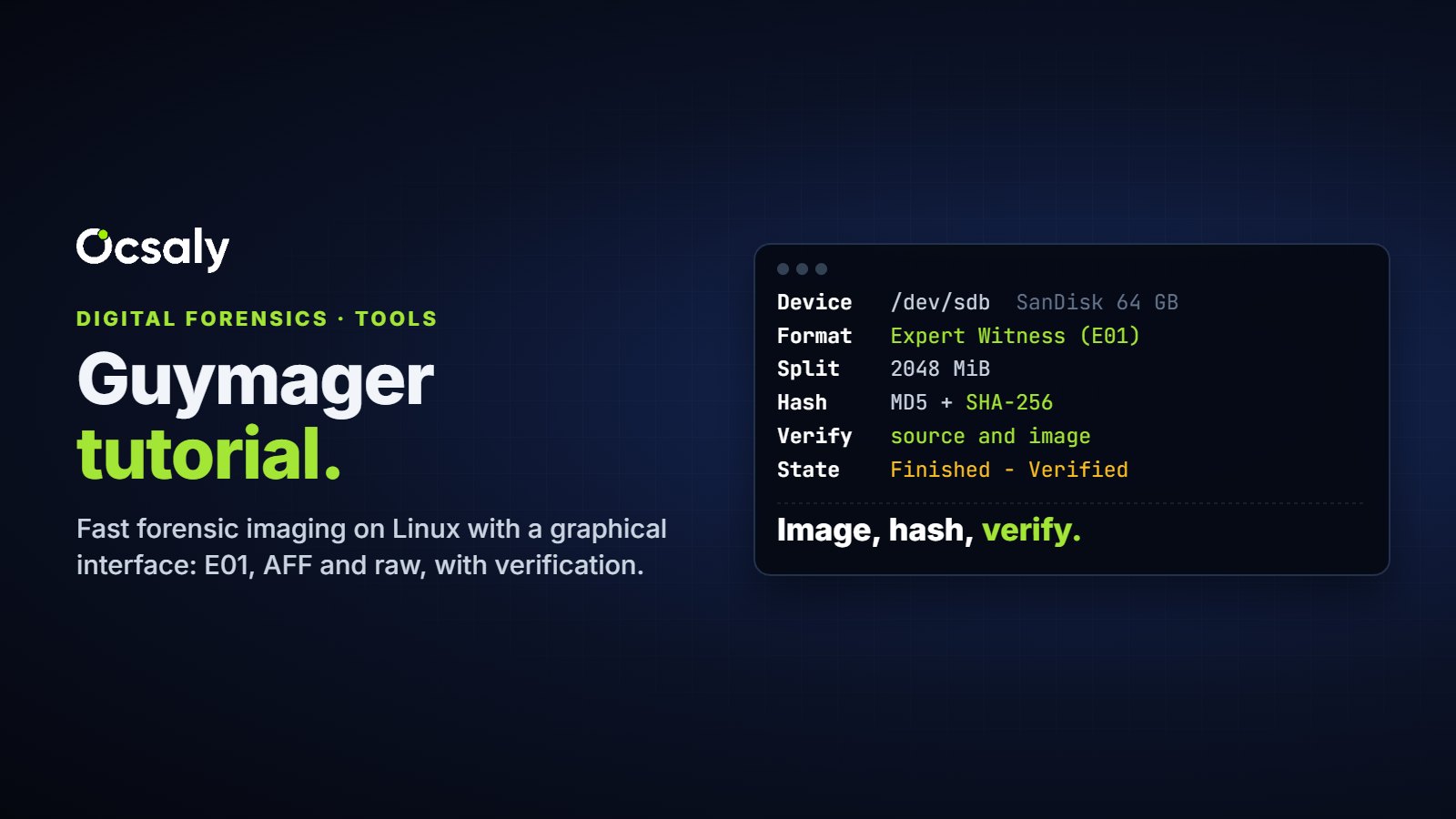
Guymager is a free, open-source forensic imaging tool for Linux with a simple graphical interface. It creates images in E01 (Expert Witness Format), AFF and raw (dd) formats, calculates hashes while imaging, verifies the result, and is fast thanks to multi-threaded compression. It comes preinstalled on forensic Linux distributions such as CAINE and is available in Kali and Debian-based systems.
Install
sudo apt install guymager
sudo guymager
Guymager needs root to access block devices. There is no official Windows version; on Windows, examiners usually use FTK Imager instead, or boot a forensic Linux distribution.
Before imaging
- Attach the evidence drive through a write blocker.
- Note the drive’s make, model, serial number and capacity.
- Make sure the destination drive has enough space and is wiped or freshly formatted.
Step-by-step imaging
- Start Guymager. It lists all connected devices with model, serial number and size.
- Right-click the evidence device and choose Acquire image.
- Choose the format:
| Format | When to use |
|---|---|
| Expert Witness Format (E01) | Most common in court work; compressed, stores case metadata and hashes |
| AFF | Open advanced format, less common today |
| Linux dd raw | Maximum compatibility, no compression or metadata |
- Fill in the case details: case number, evidence number, examiner, description, notes. They are stored in the E01 file.
- Set the split size (for example 2048 MiB) if the destination file system or your storage policy requires it.
- Choose the destination directory and file name.
- Select hash algorithms (MD5, SHA-1, SHA-256) and enable verify image after acquisition and, if possible, re-read source after acquisition.
- Start. The main window shows progress, speed and state; at the end the state should show the image as verified.
The info file
Guymager writes an .info file next to the image with the device details, case data, start and end times, hashes of the source and the image, and verification results. Keep it with your case notes and chain of custody documents.
Guymager vs other tools
| Tool | Platform | Notes |
|---|---|---|
| Guymager | Linux | Graphical, fast, E01/AFF/raw, verification |
| dc3dd | Linux | Command line, raw images, hashing and logging |
| ewfacquire | Linux | Command line E01 creation |
| FTK Imager | Windows | Popular graphical imager, also captures memory |
Format choices are compared in forensic image formats: E01, raw and AFF4.
Frequently asked questions
What is Guymager used for?
Creating forensic images of disks and other storage devices, with hashing and verification, on Linux.
Is Guymager available for Windows?
No official Windows version exists. Use FTK Imager on Windows or boot a forensic Linux environment.
Which format should I choose in Guymager?
E01 for most investigations, because it compresses data and stores case metadata and hashes. Raw if a tool you rely on requires it.
Why is Guymager so fast?
It uses multiple CPU cores for compression and hashing at the same time.
Does Guymager need a write blocker?
Guymager only reads the source, but the operating system can still write to an attached drive. A write blocker is best practice.
Learn forensic acquisition properly
Our Digital Forensics course covers imaging with Guymager and dc3dd, hashing, chain of custody and analysis, with hands-on labs. See also live vs dead forensics.