On this page
FORScan is a diagnostic program for Ford, Lincoln, Mercury and Mazda vehicles that works with an inexpensive OBD-II adapter and a Windows laptop. Unlike a generic code reader, it talks to every module in the car (engine, gearbox, ABS, airbag, body, instrument cluster and more), reads manufacturer-specific fault codes and live data, runs service procedures, and with the free extended license can change As-Built configuration to turn features on or off.
This guide covers the adapter you need, what the free and extended licenses do, a first full scan, and how to change configuration without bricking a module.
Versions of FORScan
| Version | Platform | What it does |
|---|---|---|
| FORScan for Windows | Windows laptop | Full features: all modules, live data, service functions, configuration and programming (with extended license) |
| FORScan Lite | Android and iOS | Reads and clears codes and shows live data. No module configuration |
| FORScan Viewer | Windows | Opens saved logs and data without a vehicle |
For anything beyond reading codes, use the Windows version.
Which adapter to use
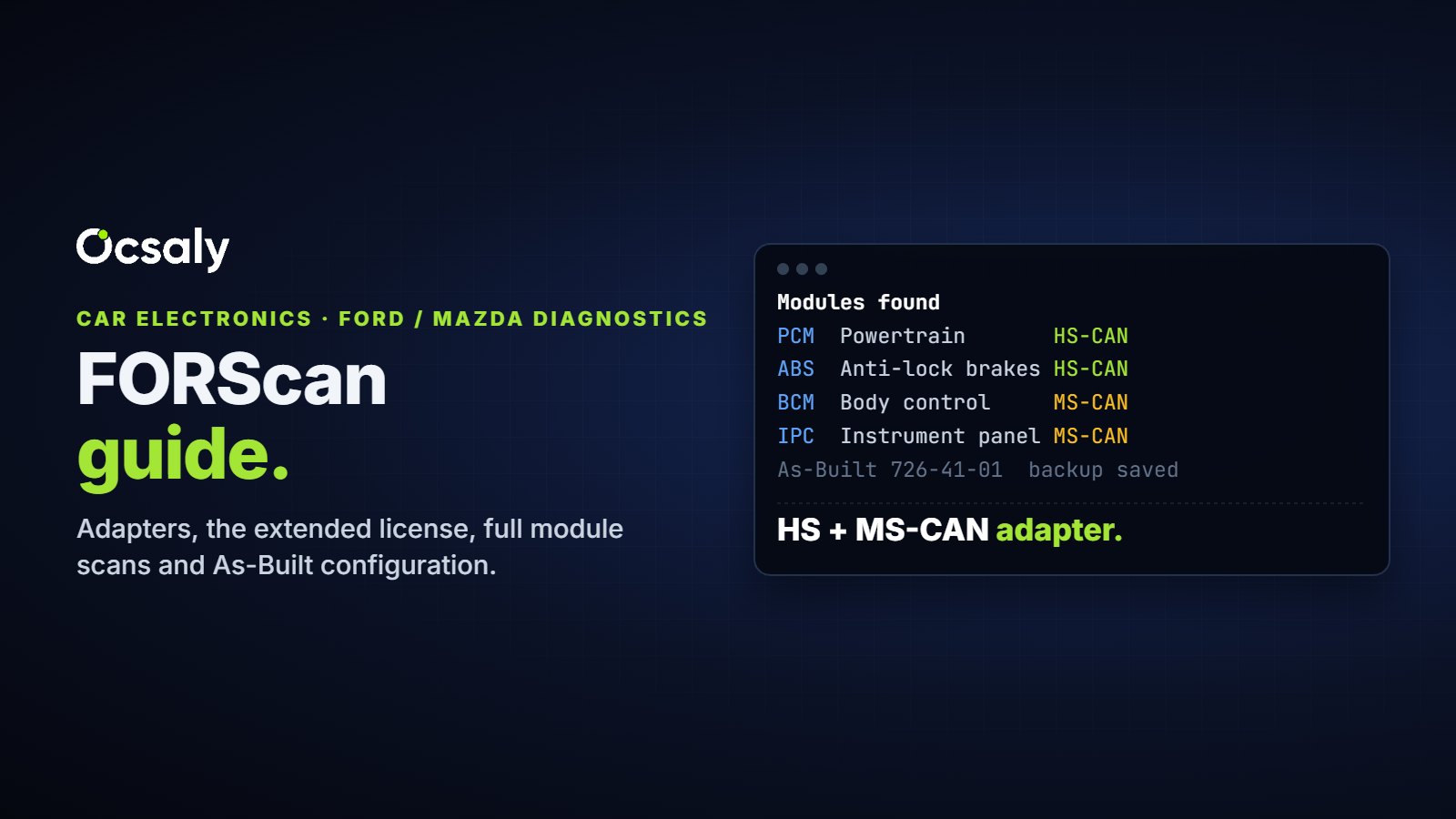
Ford vehicles have more than one CAN network. The OBD port carries HS-CAN (high speed, engine and gearbox) on pins 6 and 14, and many Fords also expose MS-CAN (medium speed, body and comfort modules) on pins 3 and 11. To reach body modules you need an adapter that can switch to MS-CAN.
| Adapter type | HS-CAN | MS-CAN | Notes |
|---|---|---|---|
| OBDLink EX (USB) | Yes | Yes | Designed for FORScan, reliable for configuration |
| OBDLink MX+ (Bluetooth) | Yes | Yes | Good wireless option |
| vLinker FS (USB) | Yes | Yes | Popular budget option made for Ford |
| Modified ELM327 with HS/MS switch | Yes | Yes (with switch) | Cheap, quality varies a lot |
| Generic cheap ELM327 clone | Yes | No | Read engine codes only, avoid for configuration |
For module configuration and programming, a USB adapter is the safest choice. Bluetooth works for diagnostics, but a dropped connection during a write can leave a module in a bad state.
Licenses: standard and extended
The standard license is free and lets you read and clear codes in all modules, view live data (PIDs) and run many self-tests.
The extended license unlocks configuration and programming: As-Built editing, module programming and many service procedures. For personal use FORScan offers a free trial extended license that you request on the FORScan website with your hardware ID. It is time-limited and can be renewed. Paid licenses are also available.
Your first full scan
- Install FORScan for Windows and the driver for your adapter.
- Connect the adapter to the OBD-II port and switch the ignition on (engine off is fine for reading).
- Connect a battery charger or maintainer if you will do anything more than read codes. Many procedures fail or brick modules below about 12 V.
- Click Connect. FORScan identifies the vehicle and lists every module it can reach.
- Open the DTC tab and read codes from all modules. Save the session before you clear anything.
- Use the PIDs tab to watch live data. Graphing a sensor while driving often finds faults that a single reading misses.
Service procedures
With the extended license FORScan can run many workshop procedures, depending on the model:
- Battery Monitoring System (BMS) reset after fitting a new battery
- DPF regeneration and DPF counters on diesels
- Injector coding after replacing an injector
- ABS service bleed
- Transmission adaptive table reset
- Steering angle sensor calibration
- Key programming (PATS) on supported models
Always read the on-screen instructions. Some procedures need the engine running at a set temperature, others need the ignition cycled in a specific order.
As-Built configuration: changing features
Every Ford module stores its configuration in As-Built blocks. Changing a bit can enable or disable features such as global windows, daytime running lights, the seatbelt chime, fog lights with high beams, or the needle sweep at start-up.
- Back up first. Save the original As-Built data for every module you will touch, and keep a copy off the laptop.
- Change one setting at a time, write it, then test the feature.
- Use the descriptive “Configuration and programming” list in FORScan when it exists for your model. Editing raw hex blocks without a known-good value is risky.
- If something stops working, restore the backup for that module.
Charge the battery during writes, never let the laptop sleep, and keep the ignition in the state FORScan asks for.
Common problems
| Symptom | Likely cause |
|---|---|
| Body modules missing from the list | Adapter cannot switch to MS-CAN |
| Connection drops during a procedure | Bluetooth adapter, laptop sleep, or low voltage |
| “Unable to connect” | Ignition off, wrong driver, or a clone adapter |
| Procedure fails half way | Battery voltage too low, conditions not met |
Frequently asked questions
Is FORScan free?
The standard license is free and covers reading codes and live data. The extended license, needed for configuration and programming, is available as a free renewable trial for personal use, or as a paid license.
What is the best adapter for FORScan?
A USB adapter that supports both HS-CAN and MS-CAN, such as the OBDLink EX or vLinker FS. They are reliable for configuration. Cheap ELM327 clones often cannot reach body modules.
Does FORScan work on Mazda?
Yes. FORScan supports Ford, Lincoln, Mercury and Mazda vehicles, although the available features depend on the model and year.
Can FORScan damage my car?
Reading codes and live data is safe. Writing configuration or programming modules carries risk if the voltage drops, the connection fails or a wrong value is written. Back up first, use a charger and change one thing at a time.
Can I use FORScan on a phone?
FORScan Lite for Android and iOS reads and clears codes and shows live data. Configuration and programming need the Windows version.
Go beyond the scan tool
FORScan shows you what the modules report. Our Car Electronics and Car Hacking course shows what happens underneath: how modules talk on HS-CAN and MS-CAN, how diagnostic requests work, and how to capture and decode the messages yourself.