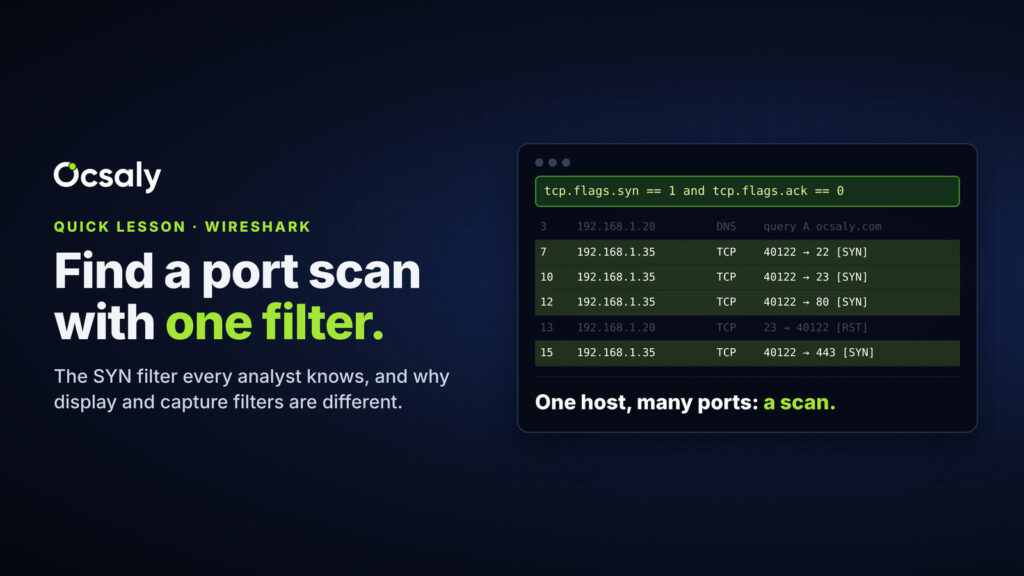
Wireshark filters come in two kinds. Display filters, typed into the green bar above the packet list, hide packets you do not want to see, for example ip.addr == 192.168.1.20 or dns. Capture filters, set before you start capturing, decide which packets are recorded at all, for example host 192.168.1.20 or port 53. They use different syntax, and mixing them up is the most common Wireshark mistake.
This page is a practical Wireshark filters cheat sheet. Start with the interactive lab: build a filter and get both versions, then test filters against a small capture that contains a port scan. Only capture traffic on networks you own or are authorised to monitor.
Interactive Wireshark lab
In Lab 1, choose a protocol, IP address and port and get the display filter, the capture filter and an explanation. In Lab 2, click a filter and see which packets of a sample capture stay visible.
| No. | Source | Destination | Protocol | Info |
|---|
Display filters vs capture filters
| Display filter | Capture filter | |
|---|---|---|
| When it applies | After capturing. Packets are only hidden | Before capturing. Packets that do not match are never saved |
| Syntax | Wireshark fields, e.g. tcp.port == 443 | BPF (same as tcpdump), e.g. tcp port 443 |
| Where you type it | The filter bar above the packet list | Capture options, or tcpdump -f / tshark -f |
| Can you undo it? | Yes, clear the filter | No, unmatched packets are gone |
| Use it for | Analysis, almost always | Busy networks or long captures where disk space matters |
Rule of thumb: capture broadly, then narrow down with display filters. Only use a capture filter when you are sure what you need.
Wireshark display filters cheat sheet
Addresses and ports
| Filter | Shows |
|---|---|
ip.addr == 192.168.1.20 | Packets to or from this IP address |
ip.src == 192.168.1.20 | Packets sent by this address |
ip.dst == 192.168.1.20 | Packets sent to this address |
ip.addr == 10.0.0.0/8 | Any address in a subnet |
!(ip.addr == 192.168.1.20) | Everything except this address |
tcp.port == 443 | TCP port 443 as source or destination |
udp.port == 53 | UDP port 53 as source or destination |
tcp.port in {80, 443, 8080} | Any of several ports (Wireshark 4.x syntax) |
eth.addr == 00:11:22:33:44:55 | A MAC address |
Protocols
| Filter | Shows |
|---|---|
http.request | HTTP requests only |
http.request.method == "POST" | HTTP POST requests, for example form logins |
http.response.code >= 400 | HTTP errors |
dns.qry.name contains "example" | DNS queries for names containing a word |
dns.flags.rcode != 0 | DNS errors such as NXDOMAIN |
tls.handshake.type == 1 | TLS Client Hello messages |
tls.handshake.extensions_server_name contains "example" | TLS connections to a server name (SNI) |
icmp.type == 8 | Ping requests |
arp | ARP requests and replies |
dhcp | DHCP (called bootp before Wireshark 3.0) |
Troubleshooting and threat hunting
| Filter | Shows |
|---|---|
tcp.analysis.flags | Every packet Wireshark marked as a TCP problem |
tcp.analysis.retransmission | Retransmitted packets (loss or congestion) |
tcp.analysis.zero_window | A receiver that cannot keep up |
tcp.flags.syn == 1 and tcp.flags.ack == 0 | New connection attempts. Many from one host means a scan |
tcp.flags.reset == 1 | Resets: closed ports or abruptly ended connections |
frame contains "password" | Any packet containing a text string |
tcp.stream eq 4 | One TCP conversation (what Follow TCP Stream uses) |
frame.time_delta_displayed > 1 | Gaps of more than a second between displayed packets |
Operators: == (or eq), !=, >, <, contains, matches (regular expression), and and, or, not. A green filter bar means the filter is valid, red means a syntax error.
A classic trap: in Wireshark versions before 3.6, ip.addr != 192.168.1.20 does not hide that address, because every packet has a source and a destination and one of them is always different. Use !(ip.addr == 192.168.1.20), which works in every version.
Capture filters (BPF) cheat sheet
| Capture filter | Records |
|---|---|
host 192.168.1.20 | Traffic to or from one host |
src host 192.168.1.20 | Traffic from one host |
net 192.168.1.0/24 | Traffic to or from a subnet |
port 53 | TCP or UDP port 53 |
tcp port 443 | TCP port 443 only |
portrange 1-1024 | A range of ports |
not arp and not broadcast | Everything except ARP and broadcasts |
tcp[tcpflags] & (tcp-syn|tcp-ack) == tcp-syn | Only TCP SYN packets without ACK |
The same filters work with tcpdump and tshark, which is handy on servers without a screen:
# capture DNS on eth0 into a file
sudo tcpdump -i eth0 -w dns.pcap port 53

# read a capture with a display filter in tshark
tshark -r dns.pcap -Y "dns.qry.name contains \"example\""

# list TCP conversations in a capture
tshark -r capture.pcapng -q -z conv,tcp
Find a port scan in four steps
- Open Statistics > Conversations and sort the TCP tab by the number of packets. A scanner talks to one host on many ports.
- Apply
tcp.flags.syn == 1 and tcp.flags.ack == 0to see only connection attempts. - Add
ip.src == <scanner>and look at the destination ports. Sequential or very many ports in seconds is a scan. - Apply
tcp.flags.reset == 1to see which ports were closed. SYN/ACK replies show the open ones.
To see what a scanner like Nmap reports for the same packets, read the Nmap cheat sheet and port states lab.
Frequently asked questions
How do I filter by IP address in Wireshark?
Type ip.addr == 192.168.1.20 in the display filter bar to see packets to or from that address. Use ip.src or ip.dst to match only the sender or only the receiver, and ip.addr == 192.168.1.0/24 to match a whole subnet.
What is the difference between a display filter and a capture filter?
A capture filter decides which packets Wireshark records and uses tcpdump (BPF) syntax, such as host 10.0.0.5. A display filter only hides packets that were already captured and uses Wireshark field names, such as ip.addr == 10.0.0.5. Packets dropped by a capture filter cannot be recovered.
How do I filter HTTP traffic in Wireshark?
Use http to show all HTTP packets, http.request to show only requests, or http.request.method == "POST" for POST requests. Encrypted HTTPS traffic shows up as tls instead, because Wireshark cannot read it without the session keys.
How do I exclude an IP address in Wireshark?
Use !(ip.addr == 192.168.1.20). In Wireshark versions before 3.6, ip.addr != 192.168.1.20 does not work as expected because it matches every packet where either address differs.
Why is my Wireshark filter bar red?
A red filter bar means the filter has a syntax error, for example a misspelled field name or a capture filter typed into the display filter bar. A green bar means the filter is valid. Yellow means it is valid but may not do what you expect.
Is it legal to use Wireshark?
Wireshark is a legal, widely used network analysis tool. Capturing traffic on networks you do not own or are not authorised to monitor can break privacy and computer misuse laws. Practise on your own network or on public sample captures.
Where to go next
This cheat sheet covers the filters you need every day. How packets move through the OSI layers, capture options, tcpdump and tshark, and step-by-step analysis of ARP, IP, TCP, UDP, DNS, DHCP and HTTP are covered lesson by lesson in Wireshark for Packet Analysis.